Empty State Design for Startups: One Next Step, Two Agency Cases
Empty State Design for Startups: One Next Step, Two Agency Cases
An effective empty state always tells people why a space is empty and hands them exactly one thing to do next. That’s it. That’s basically the whole job. Build around four pieces: a supportive visual, a headline that’s actually clear (not cute for cute’s sake), a short description that explains the “why,” and one obvious primary call to action. Nail those four and you’ve already beaten most blank screens out there.
TL;DR:
- Match tone and recovery to the cause: encourage first use, echo searches with filter resets, and give errors or access limits a direct fix.
- For new accounts, show two or three labeled sample items that are easy to delete, and offer creation, import, or templates as starting paths.
- After someone clears a list or inbox, celebrate briefly and suggest a relevant next task rather than leaving the screen at a dead end.
- An audit of 119 enterprise empty states found over 80% of body copy stayed below 20 words, so keep explanatory text brief.
- For screen readers, hide decorative art, describe informative visuals, and announce dynamic states politely; keep keyboard focus logical and respect reduced motion.
Table of Contents
- The Anatomy of an Empty State (and How to Make It Accessible)
- Match the Tone to Why the Screen Is Empty
- Patterns You Can Steal: Starter Content, No-Results, Inbox-Zero, and Permissions
- The Implementation Checklist: Layout, Transitions, Accessibility, and Metrics
- How We’ve Applied This: Two Case Sketches and a Reusable Checklist
- What Senior Teams Get Wrong About Empty States
- Where Coumba Win Fits Into Your Empty-State Work
- FAQ
- Sources
The Anatomy of an Empty State (and How to Make It Accessible)
Here’s the thing about empty states: they look simple, but every piece is doing a job, and if one piece slacks off, the whole thing falls apart.
Start with the visual. It’s either decorative (a cute little illustration that sets a mood) or informative (an icon or image that actually communicates what’s missing, like a magnifying glass for “no results”). If it’s purely decorative, mark it aria-hidden="true" so screen readers skip right past it. If it’s carrying meaning, give it real alt text. Don’t make a screen reader user sit through a description of a whimsical cartoon fox when what they needed was “no messages yet.”
The headline needs to be boring in the best way: clear, specific, and a preview of what will show up once the space fills in. “Your projects will appear here” beats “It’s quiet in here” every time, because it tells people what’s coming, not just that nothing’s there now.
The description gets one or two lines, max. Its only job is explaining why the area is empty and what happens if the reader taps the button below it. This is where microcopy examples and templates come in handy if you’re stuck on phrasing.
Then the CTA. One primary action, worded as a verb (“Create a project,” not “Projects”), plus an optional secondary link if people need an escape hatch (like “Learn more” or “Import from CSV”).
- Visual: decorative gets
aria-hidden, informative gets real alt text. - Headline: short, specific, matches what the populated state will show.
- Description: one to two lines explaining the “why” and the payoff of acting.
- CTA: one primary action verb, with a secondary link only if genuinely needed.
- Markup: use
aria-live="polite"when the empty state appears dynamically, like after a filter change, so screen readers announce it without interrupting.
In an audit of 119 enterprise empty states, over 80% of the body copy ran under 20 words. Brevity isn’t a style choice here. It’s basically the format.
Match the Tone to Why the Screen Is Empty
Not every blank screen deserves a friendly illustration and a cheerful headline. The cause of the emptiness should drive the tone, and mixing that up is where a lot of otherwise solid products stumble.
First-use or zero state happens before anyone’s added anything. This is prime real estate for encouragement: show starter content, or a clear “Create your first X” CTA that makes the first step obvious.
No-results state shows up after a search or filter comes back empty. This is not the place for whimsy. Show the actual query back to the user, suggest resetting filters, and offer a few alternative suggestions. A cartoon raccoon shrugging at “no results for ‘invoice’” doesn’t help anyone finish their task.
User-cleared or inbox-zero state is the happy one: someone finished their to-do list or cleared their inbox. Celebrate it briefly, then point to the next logical task so the moment doesn’t just dead-end.
Error and permission states need to be neutral and honest. No cute mascots apologizing. State the problem plainly and give a real path out: retry, request access, contact an admin.
- First-use/zero: encouraging tone, starter content or a “Create” CTA.
- No-results: neutral tone, echo the query, offer filter reset and alternatives.
- Inbox-zero: light celebration, immediately followed by a next-task suggestion.
- Error: candid, specific, paired with a retry or fix action.
- Permission: transparent about the restriction, with a request-access path.
Carbon’s pattern documentation makes this point directly: using the same delightful treatment across every scenario type tends to create a tone mismatch that actually frustrates people instead of charming them. A playful illustration on a permissions error reads as tone-deaf, not friendly.
Patterns You Can Steal: Starter Content, No-Results, Inbox-Zero, and Permissions
Theory’s fine, but let’s get into what actually ships.
Starter content is pre-populated sample data, like a demo project or a sample dashboard, that shows people what the feature looks like in use. Keep it light: two or three sample items, not a fully fleshed-out fake account. Make deletion painless and obvious, because nothing kills trust faster than sample data that won’t go away. Label it clearly (“Sample project, delete anytime”) so nobody mistakes it for their own work.
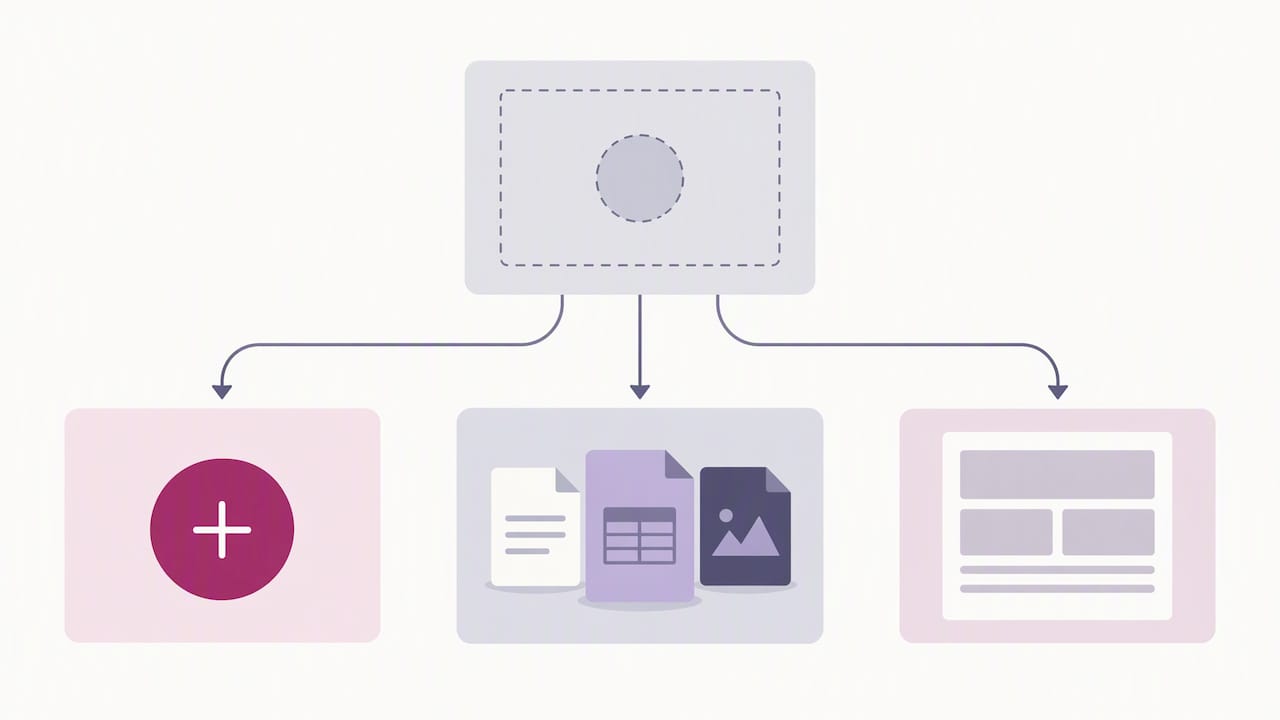
Create vs. import vs. templates is a classic activation fork. A plain “Create new” button is the lowest-friction option but asks the most of the user. “Import from CSV” or “Connect your calendar” removes friction for people who already have data elsewhere. Templates split the difference: “Start from a template” gives structure without demanding a blank-page stare-down. Teams running freemium onboarding flows often see higher activation when they offer all three options side by side rather than forcing one path.
No-results recovery needs to reflect the actual search term back (“No results for ‘q3 budget’”), then offer either a “Clear filters” button or a short list of close matches. This is the single highest-leverage empty state to get right, since a dead-end search is often the last straw before someone abandons a task entirely.
Inbox-zero and celebration states should stay short: a simple “You’re all caught up” headline, one line of context, and a next-task suggestion like “Check your drafts” or “Review last week’s reports.” Don’t overdo the confetti. One moment of delight, then move on.
Permission and error states need a precise problem statement (what exactly went wrong or what’s restricted) paired with a recovery action: “Request access,” “Contact your admin,” or “Retry.” The error-message guidelines from Nielsen Norman Group are blunt about this: messages should sit near the source of the problem, preserve whatever the user already typed, and skip any language that implies the user did something wrong.
Here’s how we’d sequence a typical rollout for a new feature:
- Ship the zero state first, with starter content and a single “Create” CTA.
- Add the no-results variant once search or filtering exists, echoing the query back.
- Build the error and permission variants before launch, not as a patch afterward.
- Layer in the inbox-zero celebration state last, since it’s the lowest-risk, highest-delight addition.
Pro Tip: Write every empty-state headline as if it’s a preview of the populated state, not a description of absence, so “No projects yet” becomes “Your projects will show up here.”
The Implementation Checklist: Layout, Transitions, Accessibility, and Metrics
Getting the words right is half the job. The other half is making sure the pattern holds up across screen sizes, motion preferences, and actual measurement.
On layout, decide early whether the empty state takes over the full page or sits inside a panel. A full-page empty state (like a brand-new workspace) can hide navigation chrome temporarily. A panel-level empty state (like an empty widget on an otherwise populated dashboard) should keep its headers and surrounding structure intact so the page doesn’t feel broken.
Transitions matter more than people expect. When content finally populates a previously empty area, the shift shouldn’t jump or flicker. Respect prefers-reduced-motion and keep any entrance animation subtle. NN/g recommends designing the transition out of the empty state as deliberately as the state itself, specifically to avoid jarring layout shifts that tank perceived performance.
- Layout: full-page for first-run contexts, panel-level for partial emptiness within a populated screen.
- Transitions: animate gently, respect reduced-motion settings, and reconcile layout shifts before they happen.
- Accessibility:
aria-live="polite"for dynamic empty states,aria-hiddenon decorative visuals, logical keyboard focus order. - Microcopy: benefit-first phrasing, strict brevity, and zero jokes in error or permission contexts.
- Measurement: track time-to-first-action, CTA conversion rate, and retention lift tied to the empty-state experience.
Over 80% of audited enterprise empty-state body copy stays under 20 words, often following a formula like “[X] will appear here.” That’s a useful ceiling to hold your copywriter to during review.
For testing, A/B test the CTA label itself (“Create a project” vs. “Get started”), whether starter content is present at all, and whether a secondary link helps or just adds clutter. Mobile layouts deserve their own pass here too, since cramped screens make every extra line of copy cost more.
How We’ve Applied This: Two Case Sketches and a Reusable Checklist
When we scope an empty state for a client, we start with three questions: who’s looking at this screen, where does the friction actually live, and is there data migrating in from somewhere else that changes what “empty” even means.
On an educational platform redesign, the student dashboard showed a blank grid before any course enrollment. We replaced the blank grid with a starter-content pattern: two sample courses clearly labeled as previews, paired with a single “Browse courses” CTA. Enrollment friction dropped because students had something to click immediately instead of guessing where to start.
On a high-end apparel brand’s account dashboard, the “Saved items” panel was empty for most new visitors. Rather than a generic “Nothing saved yet,” we matched the brand’s tone with a short, confident headline and a direct link back to the collection, keeping the panel’s surrounding layout intact so the page never felt broken.
- Confirm the root cause (first-use, no-results, error, permission) before picking a tone.
- Write the headline as a preview of the populated state, not a description of nothing.
- Keep the description under two lines and focused on the next action’s payoff.
- Mark decorative visuals
aria-hidden, informative visuals with real alt text. - Test the CTA label and the presence of starter content separately.
What Senior Teams Get Wrong About Empty States
Most teams treat empty states as a design afterthought, something to patch in before launch instead of planning from the start. The fix is building a cause-mapping matrix early: list every backend condition that can produce an empty screen (filters, permissions, sync delays, a brand-new account) and assign each one its own UI treatment before a single screen gets designed.
Empty states also need to live inside your normal QA and accessibility passes, not get waved through as “just a blank screen.” And resist the urge to reuse one illustration style everywhere. A cheerful onboarding graphic on a permissions-denied screen tells the user you didn’t think about their situation, which is the opposite of what a good empty state is supposed to do.
— Coumba Evelyn
Where Coumba Win Fits Into Your Empty-State Work
Getting empty states right across a whole product takes more than good copy. It takes a consistent design system, an accessibility pass that actually catches the aria-live and alt-text gaps, and someone who’s mapped out every “why is this screen blank” scenario before it ships. That’s the kind of detail work we build into every UX engagement.
Our team handles design for the patterns themselves, accessibility audits to address screen-reader gaps, and Webflow development when it’s time to actually build the thing. We also maintain reusable style tokens so an empty-state illustration doesn’t end up looking like it came from a different product than the rest of your app.
- UI/UX design for empty-state systems, from first-use to error recovery.
- Accessibility audits covering
aria-live, alt text, and keyboard focus order. - Webflow development for shipping the patterns on real pages.
Take a look at our work and reach out through Coumbawin to scope a design engagement or accessibility audit for your product.
FAQ
What is an empty state?
An empty state is the screen or panel a user sees when a UI component has no data to display yet, such as a brand-new inbox or a search with zero matches. A well-designed one explains why the area is empty and gives the user a clear next step, rather than leaving a blank, confusing void.
What are the four types of empty state design?
The four common scenario types are first-use or zero state, no-results state, user-cleared or inbox-zero state, and error or permission state. Each one calls for a different tone: encouraging for first-use, neutral for no-results, celebratory for inbox-zero, and candid for errors and permissions, according to pattern documentation from Carbon Design System.
What makes an empty state effective?
An effective empty state has four core pieces: a supportive visual, a concise headline, a short description of why the space is empty, and one clear primary action. NN/g’s audit of enterprise interfaces found this four-part structure consistently outperforms vague or decoration-only approaches.
How should empty states handle accessibility?
Decorative illustrations should be marked aria-hidden so screen readers skip them, while informative visuals need real alt text describing what they represent. Dynamic empty states, like ones triggered by a filter or search, should use aria-live="polite" so the change gets announced without interrupting whatever the user is doing, a pattern recommended by the Prism Design System.
How do empty states affect user retention?
A clear next action inside an empty state reduces the chance someone abandons a task at a dead end, particularly in no-results and first-use scenarios where confusion is highest. Teams typically track this by measuring time-to-first-action and CTA conversion directly from the empty-state screen rather than relying on general engagement numbers alone.
Sources
For implementation detail beyond this guide, Nielsen Norman Group’s empty-state research and Carbon Design System’s pattern library are both worth bookmarking, alongside component galleries like shadcn’s empty-state examples for structural inspiration.